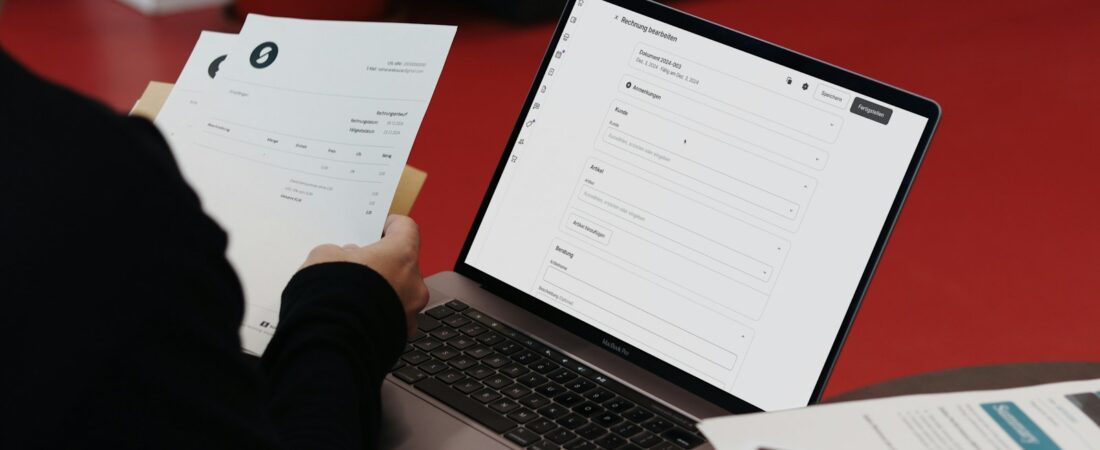
Every professional has felt it: a 90-page contract, a dense research report, or a stack of scanned invoices lands in your inbox, and you know the next hour is gone. The best AI PDF tools in 2026 exist for exactly this moment. Instead of scrolling and skimming, you ask a question and get an answer with the page number attached. Instead of retyping a scanned table, you extract it cleanly. The document stops being a wall and starts being a conversation.
I have spent a lot of time with these tools across contracts, financial statements, and academic PDFs, and the honest truth is that they vary wildly. Some are genuinely excellent at pulling accurate answers with citations; others hallucinate confidently and cost you more time than they save. A few are really full PDF editors that added a chat box, while others do nothing but chat. Which one is right depends entirely on whether you mostly read documents or mostly edit them.
This guide compares six AI PDF tools that earn their place in a professional workflow, with real pricing, clear pros and cons, and the specific job each one is best at. I will flag where a tool is worth paying for and where the free plan is all you need.

Quick Comparison Table
| Tool | Best For | Free Plan | Paid From | Rating |
|---|---|---|---|---|
| Adobe Acrobat AI Assistant | All-in-one editing plus AI | Trial only | ~$4.99/mo add-on | 4.6/5 |
| ChatPDF | Quick chat with a document | Yes | ~$5/mo Plus | 4.5/5 |
| UPDF | Editing and OCR on a budget | Yes (limited) | ~$47.99/yr | 4.5/5 |
| Humata AI | Research across many files | Yes (limited) | ~$1.99/mo Student | 4.4/5 |
| Smallpdf | Convert, compress, sign | Yes (limited) | ~$9/mo Pro | 4.4/5 |
| ChatDOC | Cited answers from tables | Yes | ~$5.99/mo Pro | 4.4/5 |
1. Adobe Acrobat AI Assistant
Adobe added an AI Assistant directly into Acrobat, which means you get generative summaries and a chat box inside the same app you already use to edit, sign, and combine PDFs. For professionals who live in Acrobat, this is the least disruptive way to add AI, because nothing leaves your existing workflow.
Use case for professionals: Open a long vendor contract, ask the AI Assistant to summarize the termination and liability clauses, and click straight to the cited source text to verify before you forward it to legal.
- Summarizes long documents and generates an overview in seconds.
- Conversational Q&A with clickable citations back to the source.
- Works alongside full editing, e-signature, and conversion tools.
- Handles multiple documents in a single query on higher tiers.
Pros: Integrated with the industry-standard editor; citations make answers easy to trust; strong security and compliance track record.
Cons: The AI Assistant is a paid add-on on top of an already paid Acrobat subscription; costs stack up quickly.
Pricing: Requires Acrobat (Standard or Pro), with the AI Assistant add-on around $4.99/month on top; a free trial is available to test it.
Best for: Professionals who already edit PDFs in Acrobat and want AI without switching tools.
2. ChatPDF
ChatPDF does one thing and does it well: you upload a PDF and start asking questions. There is no learning curve and no editor to get lost in. Drop in a report, and within seconds you are asking for the key findings, the methodology, or a specific number buried on page 47.
Use case for professionals: Paste in a research paper before a meeting and ask for a five-bullet summary plus the three most important limitations, so you can speak to it intelligently without reading all 40 pages.
- Instant chat with any uploaded PDF.
- Answers include page references you can jump to.
- Handles scanned documents and multiple languages.
- Browser based, with no install required.
Pros: Dead simple; fast; the free plan is enough for occasional use.
Cons: Free plan caps pages and daily questions; it is a reader only, with no editing; can miss nuance in very dense legal text.
Pricing: Free plan with daily limits; ChatPDF Plus is around $5/month for larger files and more questions.
Best for: Quickly understanding a single document without any setup.
3. UPDF
UPDF is a full PDF editor with an AI layer bolted on, and it undercuts Adobe dramatically on price. You get editing, annotation, OCR, conversion, and an AI assistant in one cross-platform app that runs on Windows, Mac, iOS, and Android. For professionals who both read and edit PDFs, it is the value pick.
Use case for professionals: Run OCR on a batch of scanned invoices to make them searchable, then ask UPDF AI to summarize the totals and flag anything unusual before you hand them to accounting.
- Full editing: text, images, pages, and forms.
- OCR converts scans into searchable, selectable text.
- AI summarize, translate, and chat features built in.
- One license covers all your devices.
Pros: Excellent value; genuine editing plus AI; clean interface across platforms.
Cons: AI features can be metered on lower tiers; not as deeply established as Adobe for enterprise compliance.
Pricing: Limited free version; Pro is roughly $47.99/year on frequent promotions, with the AI assistant available as part of paid plans.
Best for: Professionals who want editing and AI together without Adobe pricing.

4. Humata AI
Humata is built for research, which means its strength is answering questions across many documents at once rather than one at a time. Upload a folder of reports and ask a question, and it will pull answers from all of them with citations. For anyone doing literature reviews, due diligence, or competitive research, that cross-document view is the whole point.
Use case for professionals: Load a dozen market reports and ask “what do these say about pricing trends in 2026,” then follow the citations to confirm each claim before it goes into your own analysis.
- Ask questions across multiple documents simultaneously.
- Answers are grounded in sources with highlighted citations.
- Generates summaries and can help draft new content from your files.
- Built with academic and research workflows in mind.
Pros: Strong at multi-document research; citations reduce hallucination risk; useful for long-form analysis.
Cons: Free plan is tightly capped on pages; interface is functional rather than polished; overkill for single-file tasks.
Pricing: Free tier with limited pages; paid plans start around $1.99/month for students, with Expert and Team tiers costing more for higher limits.
Best for: Research and due diligence across a stack of documents.
5. Smallpdf
Smallpdf is the Swiss Army knife of the group. It started as a set of quick conversion and compression tools and has grown into a broad platform that now includes AI summarizing and chat alongside e-signing, merging, and editing. If your PDF pain is more about wrangling files than deep analysis, this is the practical choice.
Use case for professionals: Compress an oversized proposal to email it, convert a client’s Word file to PDF, collect signatures, and ask the AI for a quick summary, all inside one browser tab.
- Convert, compress, merge, split, and edit PDFs.
- AI summarize and chat for quick understanding.
- Built-in e-signature requests.
- Works in the browser and as a desktop app.
Pros: Covers a huge range of everyday PDF chores; clean and reliable; good for teams.
Cons: Free plan limits daily tasks; AI features are lighter than dedicated chat tools.
Pricing: Limited free use; Smallpdf Pro is around $9/month billed annually for unlimited tasks and full features.
Best for: Professionals who need to convert, compress, and sign more than they need to analyze.
6. ChatDOC
ChatDOC focuses on accuracy, and it shows in how it handles tables and structured data. It is one of the better tools at reading financial statements and spreadsheets embedded in PDFs, and every answer links back to the exact source so you can verify it. For numbers-heavy work, that traceability matters more than a slick interface.
Use case for professionals: Upload a financial report, ask for the year-over-year revenue change, and click the citation to confirm the tool read the right cell of the right table before you quote the figure.
- Strong table and formula recognition inside PDFs.
- Every answer cites the exact source location.
- Supports PDFs, Word, Excel, and more.
- Lets you select specific tables or pages to query.
Pros: Excellent with tables and data; transparent citations; handles multiple file types.
Cons: Free plan limits files and pages; interface is utilitarian; best on structured documents rather than free-flowing prose.
Pricing: Free plan available; ChatDOC Pro is around $5.99/month for higher upload and query limits.
Best for: Extracting reliable, cited answers from tables and financial documents.

How to Get Started
The fastest way to waste money here is to buy the most powerful tool before you know what you actually do with PDFs. Work through these steps instead.
- Diagnose your real need. Do you mostly read and summarize, or mostly edit and convert? Readers should start with ChatPDF or ChatDOC; editors should start with UPDF or Smallpdf. Buying the wrong category is the most common mistake.
- Test on a document you already understand. Upload a PDF you know well and ask questions you already know the answers to. This is the quickest way to catch a tool that hallucinates or misreads tables before you trust it on real work.
- Always follow the citation. The best tools link answers to source pages. Make a habit of clicking through, especially for numbers, names, and legal terms, so a confident wrong answer never slips into your work.
- Mind confidentiality. Do not upload sensitive client or financial documents until you have checked the tool’s data and retention policy and confirmed it meets your firm’s rules.
Frequently Asked Questions
Are AI PDF tools accurate enough to trust? They are accurate enough to speed up your reading, but not accurate enough to skip verification. The strongest tools cite their sources so you can confirm each answer in seconds. Treat every response as a well-informed draft, not a final fact, especially for numbers and legal language.
Is it safe to upload confidential documents? It depends on the tool and your obligations. Check each provider’s data-retention and training policy, and for regulated or client-sensitive files, stick to tools with clear enterprise security commitments, such as Adobe Acrobat, or use offline options where possible.
What is the difference between an AI PDF reader and an AI PDF editor? Readers like ChatPDF and ChatDOC let you chat with and summarize a document but not change it. Editors like UPDF and Smallpdf let you modify text, pages, and forms, with AI added on top. Match the tool to whether you mostly read or mostly edit.
Can these tools handle scanned documents? Many can, through OCR. UPDF and ChatPDF both read scans, though quality depends on the scan. For heavy scanned-invoice or scanned-contract work, a tool with strong OCR like UPDF is the safer choice.
Do I need a paid plan to get real value? Not necessarily. For occasional single-document work, the free tiers of ChatPDF, ChatDOC, and Humata are often enough. Upgrade only when file-size caps or daily limits start getting in your way.
Conclusion
If you mostly read PDFs, my top pick is ChatDOC for its accuracy and honest citations, with ChatPDF as the simplest free starting point. If you also edit, UPDF delivers the best mix of editing and AI without Adobe’s price tag. The right choice comes down to that single question of whether you read documents or reshape them.
Pick based on how you actually work, test on something familiar first, and always follow the citation before you trust a number. When you are ready to expand your stack, explore more AI tools for professionals, and for writing-heavy work, take a look at our roundup of the best free AI writing tools for work.