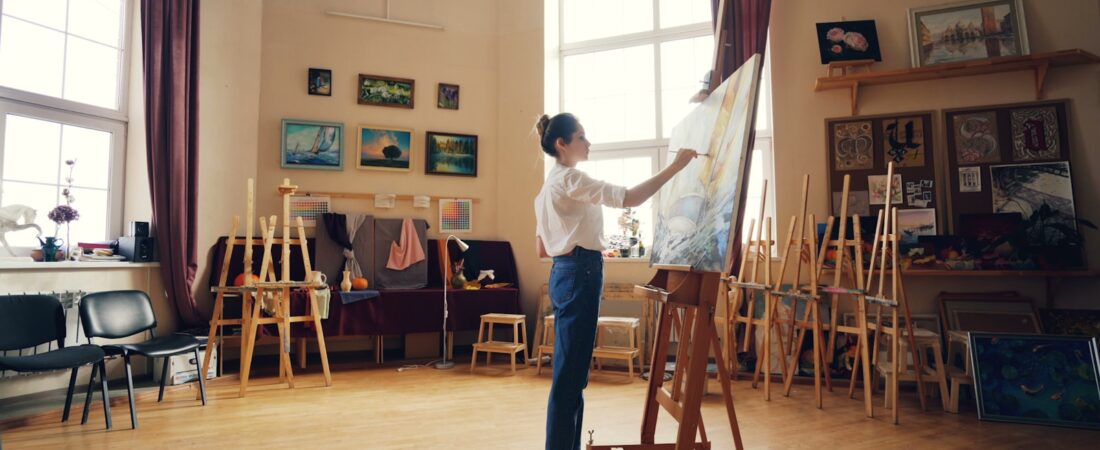
If you teach art, you already know the paradox of the job: you spend so much time cutting paper, hunting for reference images, writing sub plans, and grading 120 sketchbooks that you barely have energy left for the actual teaching. The best AI tools for art teachers in 2026 will not paint the mural for you, but they can quietly hand back the hours you lose to prep, differentiation, and paperwork so you can spend them at the easel with your students.
I want to be honest up front, because art is a field where AI makes people nervous. Generative image tools raise real questions about originality, and no responsible art teacher wants to teach kids that a prompt is the same as a skill. This guide treats AI the way a good studio treats a new medium: as a tool with a specific, limited job. None of the tools below are meant to replace drawing, painting, or your own eye. They are meant to speed up lesson planning, reference gathering, critique, and the mountain of admin that has nothing to do with art at all.
Below I compare six tools I would actually recommend to a working art teacher, with real pricing, honest pros and cons, and a specific classroom use case for each. I have grouped them so you can skip to what you need: image and demo tools, planning and rubric tools, and interactive-lesson tools.

Quick Comparison Table
| Tool | Best For | Free Plan | Paid From | Rating |
|---|---|---|---|---|
| Canva Magic Studio | Visual handouts and demos | Yes (free for educators) | ~$15/mo Pro | 4.8/5 |
| MagicSchool AI | Rubrics and lesson plans | Yes | ~$9.99/mo Plus | 4.7/5 |
| ChatGPT | Art history and critique prompts | Yes | $20/mo Plus | 4.7/5 |
| Adobe Firefly | Commercially safe demo images | Yes (credits) | ~$9.99/mo | 4.5/5 |
| Curipod | Interactive art lessons | Yes | ~$8/mo Premium | 4.4/5 |
| Padlet | Digital galleries and critique | Yes (limited) | ~$6.99/mo | 4.4/5 |
1. Canva Magic Studio
Canva is probably already open on your classroom computer, and its Magic Studio features turn it into a surprisingly strong prep tool for art teachers. You can generate reference boards, design visually clean handouts, and build slide decks that actually look like they belong in an art room rather than a spreadsheet.
Use case for art teachers: Build a one-page “elements of art” reference sheet in minutes, or use Magic Design to turn a rough list of project steps into a polished, printable studio handout with matching visuals.
- Magic Design generates full layouts from a short prompt or a single image.
- Magic Media creates illustrative images for demos and worksheets.
- Background Remover and Magic Grab clean up student photos for digital portfolios.
- Free Canva for Education account unlocks most premium features for verified teachers.
Pros: Genuinely free for educators; almost no learning curve; huge template library tailored to classrooms.
Cons: Generated illustrations can look generic; heavy reliance on templates can make handouts feel same-y.
Pricing: Free for educators via Canva for Education; Canva Pro runs about $15/month if you want it for personal use outside school.
Best for: The art teacher who wants beautiful handouts and slides without opening design software.
2. MagicSchool AI
MagicSchool is built specifically for teachers, and that focus shows. Instead of a blank chat box, you get dozens of purpose-built tools: rubric generators, lesson planners, IEP accommodation helpers, and parent-email writers. For an art teacher drowning in non-art paperwork, this is the tool that clears the desk.
Use case for art teachers: Paste in your ceramics project description and generate a clear, standards-aligned rubric with performance levels in under a minute, then tweak the language so it sounds like you.
- Rubric and assessment generators aligned to national and state standards.
- Lesson and unit planners that account for materials and time.
- Accommodation and modification tools for students with IEPs and 504 plans.
- A student-facing “Raina” chatbot with teacher guardrails.
Pros: Education-first design; strong privacy stance; the rubric tools alone save hours each grading period.
Cons: Output leans generic if you do not add specifics; art-specific templates are thinner than core-subject ones.
Pricing: Generous free plan; MagicSchool Plus is around $9.99/month (or roughly $99.96/year) for higher limits and premium tools.
Best for: Handling the rubrics, sub plans, and parent emails that steal your studio time.
3. ChatGPT
The most flexible tool on this list is still a plain chat box. ChatGPT is where art teachers do their thinking out loud: brainstorming project themes, generating discussion questions about a specific painting, or turning a dense art-history passage into something a ninth grader will actually read.
Use case for art teachers: Ask it to create ten open-ended critique questions for a still-life unit, differentiated for beginner and advanced students, then paste them straight onto your critique-day slide.
- Drafts artist bios, wall labels, and exhibition text for student shows.
- Generates critique prompts, warm-ups, and exit tickets on demand.
- Explains art movements and techniques at any reading level.
- Voice mode lets you plan hands-free while you set up the room.
Pros: Endlessly flexible; excellent for writing-heavy tasks; the free tier is very capable.
Cons: Will confidently invent facts and dates, so always verify art-history details; no built-in classroom guardrails.
Pricing: Free plan covers most teacher needs; ChatGPT Plus is $20/month for priority access and the strongest models.
Best for: Any art teacher who writes a lot of prompts, labels, and lesson text.

4. Adobe Firefly
Firefly is Adobe’s generative image model, and its selling point matters for schools: it is trained on Adobe Stock and licensed content, which makes it a more defensible choice than models with murky training data. For an art teacher, that means you can generate demonstration images and style examples without wading into the worst of the copyright debate.
Use case for art teachers: Generate a set of “same subject, different art movement” images, such as a landscape rendered as Impressionism, Cubism, and Pop Art, to launch a discussion on style before students create their own versions by hand.
- Text-to-image generation with strong style controls.
- Generative Fill and Expand for editing reference photos.
- Content Credentials tags mark images as AI-generated, a useful teaching moment.
- Integrated into Photoshop and Express if your school has Adobe licenses.
Pros: Cleaner training-data story than rivals; built-in AI labeling supports honest classroom conversations about generative art.
Cons: Free credits run out fast; results still need a human eye; using it well means teaching media literacy alongside it.
Pricing: Free tier with monthly generative credits; paid Firefly plans start around $9.99/month, and it is bundled with many Creative Cloud subscriptions.
Best for: Demonstrating styles and sparking discussion about what AI images can and cannot do.
5. Curipod
Curipod turns a topic into an interactive, student-paced lesson with polls, drawing responses, and open text prompts in a couple of minutes. For art, its drawing-response feature is the standout: students sketch directly on their device and you see the whole class’s thumbnails at once.
Use case for art teachers: Launch a “draw the principle of balance” warm-up where every student submits a quick sketch, then project the grid and use real student work to teach the concept live.
- AI generates a full interactive lesson from a single prompt.
- Drawing, poll, and open-ended response slides keep students active.
- Live thumbnails let you assess understanding at a glance.
- Lessons are easy to duplicate and adapt across class periods.
Pros: The drawing responses are perfect for art; fast to build; students stay engaged.
Cons: Free plan caps advanced features; generated slides usually need trimming and reordering.
Pricing: Free plan available; Premium is roughly $8/month billed annually for unlimited AI generations and more response types.
Best for: Quick, interactive warm-ups and formative checks built around student sketches.
6. Padlet
Padlet is a digital bulletin board, and with its AI features it has become an easy way to run online critiques and portfolio galleries. Students post photos of their work to a shared wall, and everyone can comment, react, and learn from each other without printing a thing.
Use case for art teachers: Set up a “gallery walk” Padlet for a painting unit where students upload finished pieces, then use structured comment prompts so peer feedback stays specific and kind instead of “nice job.”
- Shared walls for galleries, critique, and inspiration boards.
- AI “recipes” can generate boards, prompts, and starter content.
- Students can post images, video, audio, and links from any device.
- Privacy controls keep boards limited to your class.
Pros: Effortless digital galleries; great for peer critique; works on phones and tablets.
Cons: Free plan limits you to a handful of active boards; moderation is on you.
Pricing: Free plan with limited boards; paid plans start around $6.99/month, with school and district pricing available.
Best for: Running digital critiques and showcasing student portfolios.

How to Get Started
You do not need to overhaul your whole practice to benefit from these tools. Start small and let one win convince you to try the next.
- Pick your biggest time drain first. If grading eats your evenings, start with MagicSchool’s rubric generator. If it is handouts and slides, start with Canva. Solve one real problem before adding anything else.
- Keep a “human-made only” line. Decide clearly where AI stops and student hands begin. Use generative images for demos and discussion, never as a substitute for the art students make themselves, and tell your students exactly where that line is.
- Build one lesson end to end. Take a unit you already teach and rebuild just the prep with these tools: rubric in MagicSchool, warm-up in Curipod, critique board in Padlet. You will learn more from one full cycle than from hours of watching tutorials.
- Check everything before it reaches students. AI invents facts and dates. Read every artist bio and history blurb before you print it, and treat the output as a first draft, not a final one.
Frequently Asked Questions
Is it ethical to use AI-generated images in an art classroom? It can be, if you are transparent about it. Using AI images for demonstrations, style comparisons, and discussion is very different from passing them off as the goal. Many art teachers use tools like Adobe Firefly precisely to teach media literacy and to talk openly about what generative art is and is not.
Will these tools replace what art teachers do? No. Nothing here can teach a child to see, to make deliberate choices, or to develop a personal style. These tools handle prep, paperwork, and logistics so you have more time for the human parts of teaching that no model can do.
Which tool should I try first if I only pick one? MagicSchool AI, because it targets the administrative load that has nothing to do with art but eats your time anyway. The rubric and lesson planners deliver an immediate, visible payoff.
Are these tools safe for student data? The teacher-focused options like MagicSchool and Canva for Education are built with student privacy in mind. Always check your district’s approved-tools list and avoid entering student names or identifying details into any general chatbot.
Do I need to pay to get real value? No. Every tool here has a free plan that covers the core use cases. Pay only once a tool has clearly earned a place in your routine.
Conclusion
If I had to hand one recommendation to a busy art teacher, it would be MagicSchool AI for the pure time it gives back on rubrics, planning, and paperwork, paired with Canva Magic Studio for anything visual. Together they cover the two biggest drains on your week and leave the art itself entirely in human hands, which is exactly where it belongs.
Start with one tool, protect the line between AI prep and student-made art, and add from there. When you are ready to keep building your toolkit, explore more AI tools for professionals, and if you want a broader starting point for the classroom, see our guide to the 15 best free AI tools for teachers.