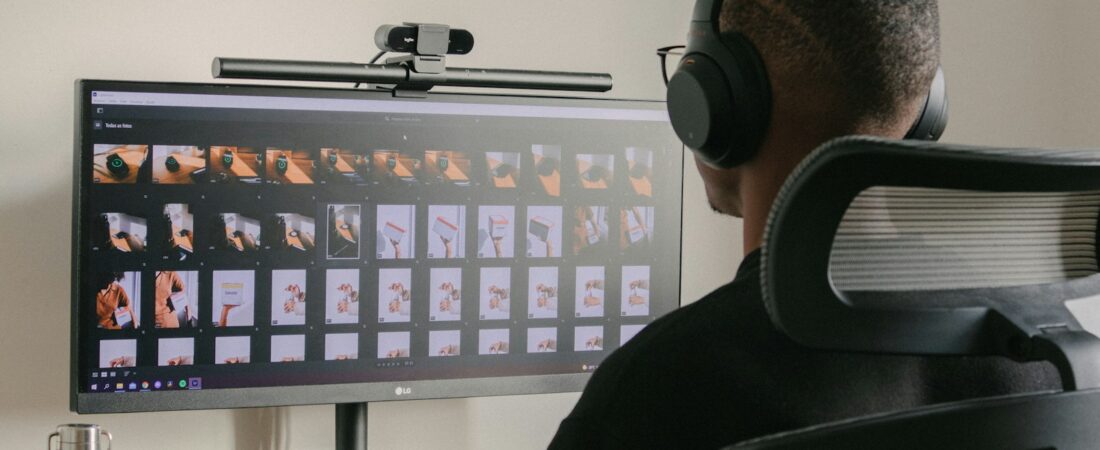
Editing for YouTube is a grind of repetitive tasks: cutting filler words, syncing captions, finding b-roll, and pumping out shorts from long videos. The best AI video editing tools for YouTube editors in 2026 automate the boring ninety percent so you can spend your energy on the storytelling and pacing that actually keep viewers watching.
I have tested these tools on real channels, from talking-head creators to multi-cam podcasts, to see which genuinely speed up a YouTube workflow versus which just add subscription bloat. The honest takeaway is that AI is now excellent at transcription-based editing, auto-captioning, and repurposing content into shorts, while creative decisions about hooks and structure still belong to the editor.
Below you will find a quick comparison table, seven tools worth knowing, what to look for before you subscribe, a practical workflow, common mistakes, and the questions YouTube editors ask most. Pricing is described honestly, including where free tiers are genuinely usable.
Quick Comparison Table
| Tool | Best For | Free Plan | Paid From | Rating |
|---|---|---|---|---|
| Descript | Text-based editing | Yes | ~$24/mo | 4.6/5 |
| Opus Clip | Long video to shorts | Yes | ~$19/mo | 4.5/5 |
| Adobe Premiere Pro | Professional editing | Trial | ~$22.99/mo | 4.6/5 |
| CapCut | Fast free editing | Yes | ~$9.99/mo | 4.5/5 |
| Submagic | Captions and b-roll | Trial | ~$16/mo | 4.4/5 |
| Runway | Generative effects | Yes | ~$15/mo | 4.4/5 |
| ElevenLabs | AI voiceover and dubbing | Yes | ~$5/mo | 4.6/5 |

Descript
Descript lets you edit video by editing text. It transcribes your footage, and deleting a sentence in the transcript deletes it from the video. For YouTube editors, this transforms the slog of cutting filler words and rambling into a fast, document-like process.
The standout feature is filler-word removal and Studio Sound, which cleans up audio in one click. Combined with text-based cutting, a rough talking-head edit that took an hour can drop to fifteen minutes.
- Text-based video and audio editing
- One-click filler-word removal
- AI Studio Sound for cleaner audio
- Overdub and AI voice features
Pros: Massive time saver for talking-head content, easy to learn, usable free tier.
Cons: Less suited to complex cinematic edits; exports can be watermarked on free plan.
Pricing: Free tier; Creator plan around $24 per month.
Best for: Dialogue-heavy YouTube videos and podcasts.
Opus Clip
Opus Clip takes a long video and automatically finds the most engaging moments, then cuts them into vertical shorts with captions and a virality score. For editors repurposing long content into Shorts, it is a genuine multiplier.
The concrete win is volume. Instead of manually hunting for clip-worthy moments, you upload once and get a batch of ready-to-post shorts, then refine the best ones rather than building them from scratch.
- Automatic clip selection from long videos
- Auto-captions and reframing to vertical
- Virality scoring to prioritize clips
- Brand templates for consistency
Pros: Huge time saver for shorts, decent clip selection, free tier to test.
Cons: Clip picks need human review; best results still require editing.
Pricing: Free tier; paid plans start around $19 per month.
Best for: Turning long videos into a steady stream of shorts.

Adobe Premiere Pro
Premiere Pro remains the professional standard, and Adobe has woven AI throughout it: text-based editing, automatic transcription, scene edit detection, and generative features. For editors who need full creative control, it now combines depth with real speed.
The benefit is having AI acceleration without giving up a pro toolset. You get transcription-based rough cuts and smart tools, then the full timeline power for color, effects, and precise finishing.
- Text-based editing with transcription
- Scene edit detection and smart tools
- Generative and enhancement features
- Full professional editing environment
Pros: Industry standard, deep toolset, AI features baked in.
Cons: Subscription cost, steeper learning curve, heavier on hardware.
Pricing: Around $22.99 per month for the single app.
Best for: Editors who need professional depth plus AI speed.
CapCut
CapCut is a free, capable editor packed with AI features like auto-captions, background removal, and quick effects. It is a favorite for fast turnarounds and shorts, and the free tier does a lot before you ever hit a paywall.
The everyday use is speed on a budget. For editors banging out frequent shorts or simple long-form, CapCut delivers auto-captions and effects without the cost or weight of a pro suite.
- Auto-captions and text-to-speech
- Background removal and effects
- Templates for quick edits
- Generous free tier
Pros: Free and powerful, fast, great for shorts and quick edits.
Cons: Less precise for complex projects; some features and assets are Pro-only.
Pricing: Free; Pro around $9.99 per month.
Best for: Fast, low-cost editing and shorts.
Submagic
Submagic specializes in the dynamic captions, emojis, and b-roll that define modern short-form video. It auto-generates trendy animated captions and suggests relevant b-roll and sound effects to keep energy high.
The use case is polish at speed. If your channel relies on the punchy caption style viewers expect from shorts, Submagic produces it in minutes instead of the tedious frame-by-frame styling it used to take.
- Animated, trendy auto-captions
- B-roll and sound-effect suggestions
- Templates tuned for short-form
- Fast turnaround on clips
Pros: Excellent captions, saves styling time, short-form focused.
Cons: Narrower use case; subscription for regular use.
Pricing: Around $16 per month after a trial.
Best for: Short-form creators who want punchy captions fast.

Runway
Runway brings generative AI to video: text-to-video generation, inpainting to remove objects, background replacement, and stylized effects. For editors who want to create shots or effects they could not otherwise film, it opens new creative doors.
The benefit is impossible b-roll. Need a surreal transition or a shot you never captured, Runway can generate or transform footage that would be expensive or impossible to shoot, adding production value to a YouTube video.
- Text-to-video generation
- Object removal and background replacement
- Stylized AI effects
- Free tier with credits
Pros: Creative generative power, useful for unique b-roll and effects.
Cons: Credit-based costs add up; generated clips need careful selection.
Pricing: Free tier with credits; paid plans start around $15 per month.
Best for: Editors wanting generative effects and b-roll.
ElevenLabs
ElevenLabs produces remarkably natural AI voiceover and can dub videos into other languages. For editors, it is a fast way to add narration, fix a flubbed line, or expand a channel to new-language audiences.
The everyday use is voiceover without a booth. Generate a clean narration track from a script, or dub a video into Spanish or French, and you reach viewers you could not before, all from the editing desk.
- Natural AI text-to-speech voices
- Multilingual dubbing
- Voice cloning for consistency
- Free tier for testing
Pros: Very natural voices, great for dubbing, affordable entry.
Cons: Ethical and disclosure considerations with cloned voices; usage limits on lower tiers.
Pricing: Free tier; paid plans start around $5 per month.
Best for: AI narration and multilingual dubbing.
What to Look for in AI Video Editing Tools for YouTube Editors
Start with your content type, because the right tool depends heavily on it. Talking-head and podcast editors get the most from text-based tools like Descript, while short-form specialists benefit more from Opus Clip and Submagic. Buying a generative tool when your real need is faster captioning is a common and costly mismatch.
Next, weigh export quality and watermarks. Free tiers are great for testing, but check resolution caps and watermarks before you build a workflow around one, because discovering a limitation at upload time is painful. Also confirm the tool exports in the formats and aspect ratios YouTube and Shorts expect.
Finally, think about how tools fit together rather than chasing one that does everything. Many editors pair a primary editor like Premiere or Descript with a shorts tool and a voice tool, and that combination beats a single jack-of-all-trades. Keep your stack lean enough that each subscription clearly earns its place.
Why AI Adoption Is Growing Among YouTube Editors
The demand for output has exploded. Channels now need long-form videos plus a steady drip of shorts across multiple platforms, and doing all of that by hand is simply not sustainable for one editor. AI that repurposes, captions, and cleans up footage is what makes that volume achievable without burning out.
Competition has also raised the baseline. Viewers expect crisp captions, tight pacing, and clean audio as table stakes, so editors who automate those fundamentals free their time for the creative choices that actually differentiate a channel. In a crowded feed, that reclaimed time is often the difference between growing and stalling.
How to Get Started
Build your AI workflow one piece at a time rather than all at once.
Step 1: Speed up your main edit. If you do talking-head content, start with Descript’s free tier; if you live in a pro suite, turn on Premiere’s text-based editing.
Step 2: Automate shorts. Add Opus Clip to turn long uploads into a batch of shorts, then refine the strongest picks instead of hunting clips manually.
Step 3: Polish captions and audio. Layer in Submagic for short-form captions and ElevenLabs if you need narration or dubbing.
Step 4: Keep the creative control. Let AI handle the repetitive cuts and captions, but you still decide the hook, structure, and pacing that make a video work.
Common Mistakes to Avoid
The biggest mistake is publishing AI output without review. Auto-selected clips, generated captions, and dubbed audio all make errors, so always watch the result before it goes live, especially captions that can garble names or numbers.
Another mistake is stacking too many subscriptions. It is easy to end up paying for five overlapping tools, so audit your stack regularly and cut anything that does not clearly save time or improve quality.
A third pitfall is over-relying on generative effects. A few striking AI shots add value, but leaning on them for everything makes a channel feel gimmicky and can distract from the story.
Finally, be transparent with your audience about AI voices or likenesses. Disclosure builds trust, and undisclosed cloned voices can damage the relationship with viewers if discovered.
Frequently Asked Questions
What is the best AI tool for turning long YouTube videos into shorts? Opus Clip is the go-to. It automatically finds engaging moments, reframes them to vertical, and adds captions, giving you a batch of shorts to refine rather than build from scratch.
Can AI fully edit my YouTube videos for me? No. AI handles cutting filler, captioning, and repurposing well, but the creative decisions about hooks, pacing, and structure still require a human editor. Treat these tools as accelerators.
Which tool is best if I have no budget? CapCut offers a genuinely powerful free editor with AI captions and effects, and Descript’s free tier is excellent for text-based editing of talking-head content.
Are AI captions accurate enough to publish? They are strong but not perfect, especially with names, jargon, and accents. Always proofread auto-captions before publishing, since errors undermine credibility and accessibility.
Is it okay to use AI voiceover on YouTube? Yes, tools like ElevenLabs produce natural narration, but disclose AI voices where appropriate and avoid cloning anyone’s voice without permission to stay on the right side of trust and policy.
Conclusion
For most YouTube editors, I would build around Descript for fast text-based editing and Opus Clip for shorts, adding CapCut for free quick edits and ElevenLabs when you need voiceover. If you need professional depth, Premiere Pro with its AI features is the anchor. Match the stack to your content, not the hype.
These AI video editing tools for YouTube editors exist to hand back the hours lost to repetitive tasks so you can focus on great storytelling. To keep exploring, explore more AI tools for professionals, and if you want to create footage from scratch, see our review of the best AI video generators.